Regular Expressions in Linux: Syntax, grep, sed and awk with Examples

Let's get serious. Take the kids out of the room. If you don't know a bit of regular expressions in Linux, you don't know Linux yet. It's like having a Yacht to cruise around your backyard pool.
A regular expression is a formal method of specifying a text pattern to be searched for in one or more files.
It is a composition of characters with special functions (metacharacters) that grouped together with literal characters (from A to Z) and numbers can form a sequence, an expression that the shell and text editors can understand and search for.
Regular expressions are useful for searching or validating variable texts such as:
- IP address number;
- E-mail address;
- Internet address (URL);
- Data in a column in a text;
- Data between <tags></tags> in a language, such as HTML;
- CNPJ, RG, CPF number, etc.;
- Date and Time.
Various text editors and programming languages offer support for regular expressions. The important tools that work with this feature for the CompTIA Linux+ exam are grep and sed.
grep command
Usage:
$ grep [options] regular-expression files
The grep command is widely used in the day-to-day of administrative tasks in Linux.
It filters the lines of a given file searching for a regular expression as a pattern.
grep can read one or more files passed as arguments or can receive from standard input the redirection from another process output.
If grep receives more than one file or a wildcard as an argument to perform its search, it will indicate the file name followed by a colon and the found line.
Its most frequent options are:
- -c: Shows only the count of occurrences in the files and not the lines where the occurrences were found;
- -h: Shows only the found lines, without indicating the file names;
- -i: Searches for occurrences ignoring whether the letters are uppercase or lowercase;
- -v: Shows all lines of the searched file except the found occurrences. It has the opposite effect;
- -n: Shows, in addition to the text of the found lines, the line numbers within the files;
- -B n: Shows n lines before the found line;
- -A n: Shows n lines after the found line.
Examples:
$ grep uira /etc/passwd
uira:x:500:100:uira:/home/uira:/bin/bash
Searches for the word uira in the /etc/passwd file.
$ grep '^u' /etc/passwd
uucp:x:10:14:Unix-to-Unix CoPy system:/etc/uucp:/bin/bash
uira:x:500:100:uira:/home/uira:/bin/bash
Searches for all lines starting with the letter u in the /etc/passwd file. The caret symbol represents the beginning of a line.
$ grep 'false$' /etc/passwd
mail:x:8:12:Mailer daemon:/var/spool/clientmqueue:/bin/false
wwwrun:x:30:8:WWW daemon apache:/var/lib/wwwrun:/bin/false
Searches for all lines ending with the word false. The symbol $ represents the end of a line.
$ grep '^[aeiou]' /etc/passwd
uucp:x:10:14:Unix-to-Unix CoPy system:/etc/uucp:/bin/bash
at:x:25:25:Batch jobs daemon:/var/spool/atjobs:/bin/bash
uira:x:500:100:uira:/home/uira:/bin/bash
alias:x:501:1000::/var/qmail:/bin/false
In the shell, always use 'single quotes' when using regular expressions.
Searches for all lines starting with vowels. The regular expression called list searches for any of the characters inside the brackets. Note that the list only searches for just one character, no matter how large it is.
$ grep '^.[aeiou]' /etc/passwd
root:x:0:0:root:/root:/bin/bash
bin:x:1:1:bin:/bin:/bin/bash
news:x:9:13:News system:/etc/news:/bin/bash
uira:x:500:100:uira:/home/uira:/bin/bash
Searches for all lines where the first character is any one and the second character is a vowel. The period in the regular expression symbolizes "any single character".
$ grep '[0-9][0-9][0-9][0-9]' /etc/passwd
squid:x:31:65534:WWW-proxy squid:/var/cache/squid:/bin/false
nobody:x:65534:65533:nobody:/var/lib/nobody:/bin/bash
alias:x:501:1000::/var/qmail:/bin/false
qmaild:x:502:1000::/var/qmail:/bin/false
Searches for lines containing a sequence of four consecutive numbers.
$ cat * | grep security
Searches in all files in a directory for the occurrence of the word security.
egrep command
Usage:
$ egrep [options] regular-expression files
The egrep command is very similar to grep, but it supports regular expressions with metacharacters +, ?, | and ().
fgrep command
Usage:
$ fgrep [options] search-key files
The fgrep command is also similar to grep, but it does not support regular expressions, searching only for a search key or text in the files. For this reason, it is faster than grep, but less versatile.
sed command
Usage:
$ sed [opções] {script}
The sed command is a simple text editor used to make small transformations in file content.
sed receives text from one or more files passed as arguments on the command line and transforms it, sending the modification to standard output (video monitor).
If we want sed to actually change the file content, we need to use the greater-than ">" redirector to another file and then copy it. The "-i extension" option also allows us to edit the file directly and save a backup with the indicated extension.
$ sed ‘s/\/usr\/local\/bin/\/usr\/bin/’ texto.txt > textonovo.txt
You can choose to use -i, so sed will change texto.txt and keep a backup in texto.txtold:
$ sed –i old ‘s/\/usr\/local\/bin/\/usr\/bin/’ texto.txt
Replaces the sequence /usr/local/bin with /usr/bin in the texto.txt file. Note that the backslashes (\) tell the regular expression interpreter that the character immediately following should be interpreted literally and not as a regular expression symbol.
$ sed ‘s/uira/carla/’ /etc/passwd
Replaces the name uira with the name carla in the /etc/passwd file
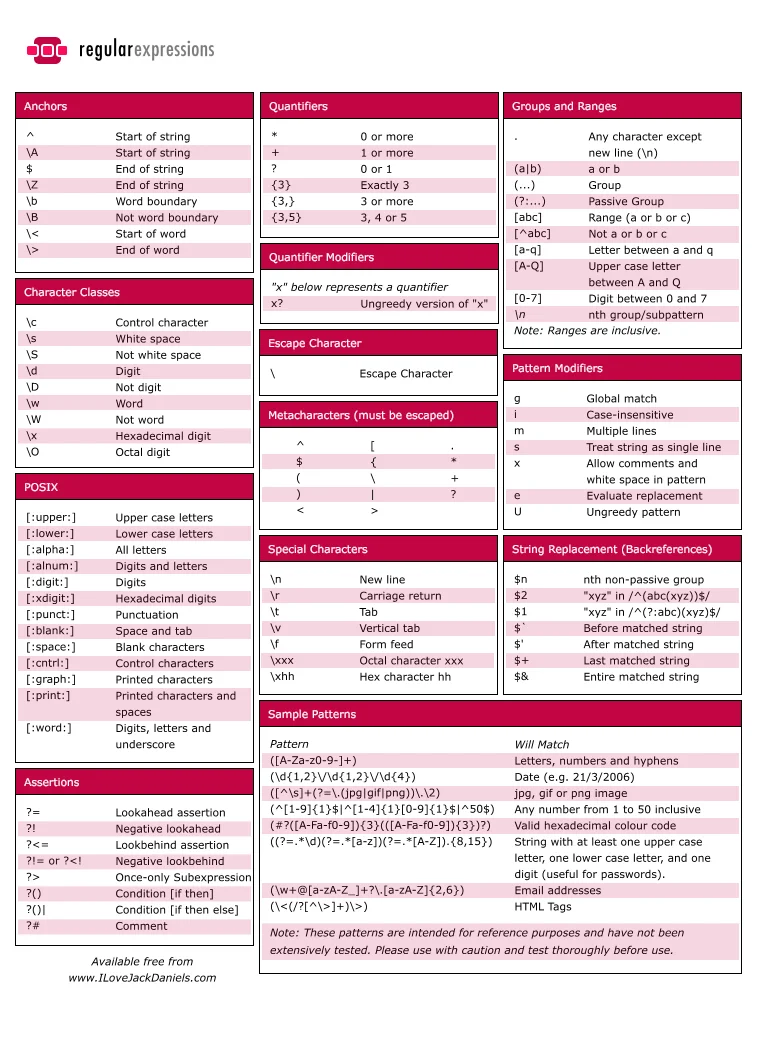
Regular Expressions Summary
Note in the table the main symbols that can be combined to form complex regular expressions:
TABLE – Regular Expressions
| Symbol | Description |
| ' | Single quotes are used to delimit the text within them as literal characters without interpreting any character inside them as a metacharacter. |
| " | Double quotes are used to delimit the text within them as literal characters except for the "$" and "\" signs. |
| \ | The backslash is used to indicate that the character immediately after should be interpreted as literal. |
| ^ | The caret is used to indicate the beginning of a line. |
| $ | The dollar sign is used to indicate the end of a line. |
| [aeiou] | A sequence of characters within brackets is interpreted as all characters are valid for the search. |
| [a-z] | The minus sign indicates that any character between the letter a and the letter z are valid. |
| [^abc] | Indicates that any character except the letters a, b, c are valid in the search. |
| /word/ | Indicates that the searched word should be separated by spaces on the left and on the right. |
| [0-9] | Indicates that any number from zero to nine is valid for the search. |
| . | The period indicates any character except a blank line. |
Examples:
To search for lines starting with "Nov 10":
$ grep "^Nov 10" messages
Nov 10 01:12:55 gs123 ntpd[2241]: time reset +0.177479 s
Nov 10 01:17:17 gs123 ntpd[2241]: synchronized to LOCAL(0), stratum 10
Nov 10 01:18:49 gs123 ntpd[2241]: synchronized to 15.1.13.13, stratum 3
To search for lines ending with "terminating.":
$ grep "terminating.$" messages
Jul 12 17:01:09 cloneme kernel: Kernel log daemon terminating.
Oct 28 06:29:54 cloneme kernel: Kernel log daemon terminating.
To count blank lines in meulog.log, we use "^$":
$ grep -c "^$" meulog.log
meulog.log:3
To search for all occurrences of ".ola" in a file:
$ grep ".ola" arquivo
Mola
Cola
Tola
Hola
Learn much more about Linux in our online course. You can enroll here. If you already have an account, or want to create one, just log in or create your user here.
Did you like it? Share

Prof. Uirá Ribeiro
Chair do Board do Linux Professional Institute
After years of watching professionals waste hours on simple tasks because they didn't know the right Linux tools, I decided to teach.
Today I'm the author of most of LPI's official Learning Materials and mentor to over 14,000 certified students.
That was just one piece. The course teaches the whole path — from your first command to exam day.

