Complete Guide to sudo in Linux: How and Why to Use it Safely


The sudo command is one of the most important and frequently used commands in Linux. It allows regular users to run commands with superuser (root) privileges, providing a secure way to administer the system without the need to log in as root. In this article, we will explore in detail how sudo works, why it is essential for system administration, and how to use it effectively and safely.
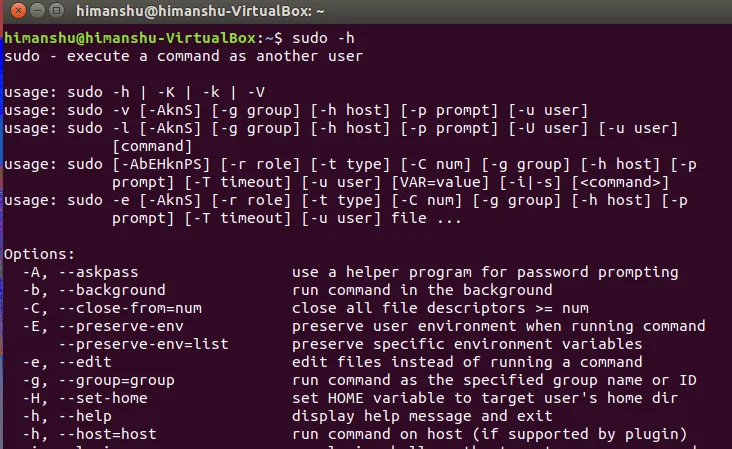
What is the sudo Command?
sudo, which stands for "substitute user do" or "superuser do," is a command in Linux that allows the execution of commands with the privileges of another user, usually the superuser (root). This is useful for administrative tasks that require elevated permissions, such as installing software, modifying system configurations, or editing system files.
Why Use sudo on Linux?
Using sudo instead of directly logging in as root is a recommended practice for several reasons:
- Security: Limits the time you operate as root, reducing the risk of executing potentially dangerous commands.
- Auditability: With
sudo, all actions performed with elevated privileges are logged, allowing you to track administrative activities. - Access Control: Administrators can configure
sudoto grant specific permissions to specific users, without giving full system access.
How Does the sudo Command Work?
When you run a command with sudo, the system checks the /etc/sudoers file to determine if the user has permission to run the command. If allowed, the command is executed with elevated privileges.
Basic example:
sudo apt-get updateIn this example, the apt-get update command is executed with superuser privileges, allowing the system to update the package indexes.
Practical Examples of Using sudo
1. Running Simple Commands with sudo
Any command that needs elevated privileges can be run with sudo:
sudo systemctl restart apache2This restarts the Apache service with superuser privileges.
2. Editing System Files
Many system configuration files require root permissions to be edited. With sudo, you can use your preferred text editor to do this:
sudo nano /etc/hostsThis command allows you to edit the /etc/hosts file with the nano editor.
3. Temporary User Switching
sudo can also be used to run commands as another user:
sudo -u outro_usuario comandoFor example, to run a command as the postgres user:
sudo -u postgres psql4. Listing sudo Privileges
You can check which sudo privileges you have configured:
sudo -lThis command lists the commands you are authorized to run with sudo.
Best Practices When Using sudo
- Use
sudoOnly When Necessary: Avoid usingsudofor commands that do not require root privileges. This reduces the risk of accidental errors. - Verify Commands Before Running Them: Always review the command you are about to run with
sudoto ensure it will not damage the system. - Configure
sudoSecurely: Usevisudoto edit the/etc/sudoersfile and configure permissions in a restrictive and specific manner.
Security with sudo: Additional Tips
- Limit the Use of
NOPASSWD: TheNOPASSWDoption can be convenient, but should be used with caution, as it allows command execution without requesting a password. - Regularly Review the
/etc/sudoersConfiguration: Ensure that only users who truly need sudo access have those permissions. - Monitor
sudoUsage: Regularly check thesudologs to ensure it is being used correctly.
The sudo command is a powerful tool in Linux that, when used correctly, provides security, control, and efficiency in system administration. By understanding how to configure and use it properly, you can protect your system against errors and unauthorized access, while making it easier to perform administrative tasks.
Here is the continuation of the article with a detailed section on editing the /etc/sudoers file, including configuration examples for users and groups, with and without password requirement.
Configuring the /etc/sudoers File
The /etc/sudoers file is where you define the permission rules for using sudo. It controls which users and groups can run which commands as the superuser or as other users. Editing this file should be done with great care, as errors can result in losing access to sudo. To ensure the integrity of the file, use the visudo command, which validates the syntax before saving changes.
sudo visudoExample Configuration for a Specific User
Let's say you want to allow a user called joao to run all commands as root, but have the password requested when using sudo. In the /etc/sudoers file, you would add the following line:
joao ALL=(ALL:ALL) ALLExplanation:
- joao: User name.
- ALL: The user can run commands from any terminal.
- (ALL:ALL): The user can run commands as any user or group.
- ALL: The user can run all commands.
Passwordless Permission for a Specific User
If you want to allow joao to run all commands as root without having to provide a password, you can modify the line to:
joao ALL=(ALL:ALL) NOPASSWD: ALLExplanation:
- NOPASSWD: This option allows
joaoto run commands without being prompted for the password.
Configuration Example for a Specific Group
Now, if you want all users in a specific group, for example, the admin group, to be able to use sudo to run any command, and have their passwords requested, you would add the following line:
%admin ALL=(ALL:ALL) ALLExplanation:
- %admin: The
%symbol indicates that we are referring to a group, not an individual user. - The rest of the line follows the same logic as the configuration for an individual user.
Passwordless Permission for a Specific Group
If you want all members of the admin group to be able to use sudo without having to provide a password, the configuration would be:
%admin ALL=(ALL:ALL) NOPASSWD: ALLPermission to Run Specific Commands
Sometimes, it's necessary to allow a user or group to run only specific commands with sudo. For example, allowing user maria to restart the Apache service without a password:
maria ALL=(ALL) NOPASSWD: /usr/sbin/systemctl restart apache2Explanation:
- /usr/sbin/systemctl restart apache2: The full path to the specific command that
mariacan run without a password.
Default sudoers Configuration with Comments
Here is an example of what the /etc/sudoers file might look like with the configurations we covered, including some comments to make understanding easier:
# Permitir que o usuário 'joao' execute qualquer comando, solicitando a senha
joao ALL=(ALL:ALL) ALL

# Permitir que o usuário 'joao' execute qualquer comando sem solicitar a senha
#joao ALL=(ALL:ALL) NOPASSWD: ALL

# Permitir que todos os membros do grupo 'admin' usem sudo para qualquer comando, solicitando a senha
%admin ALL=(ALL:ALL) ALL

# Permitir que todos os membros do grupo 'admin' usem sudo sem solicitar a senha
#%admin ALL=(ALL:ALL) NOPASSWD: ALL

# Permitir que o usuário 'maria' reinicie o Apache sem solicitar a senha
maria ALL=(ALL) NOPASSWD: /usr/sbin/systemctl restart apache2
Conclusion: Configuring sudo Securely
Properly configuring the /etc/sudoers file is essential to ensure that sudo is used securely and effectively on Linux. By defining specific permissions for users and groups, you can control exactly who can do what on the system, minimizing the risk of errors and improving overall security.
Remember to always use the visudo command when editing the /etc/sudoers file to avoid syntax errors that could compromise access to sudo. And, when configuring passwordless permissions (NOPASSWD), do so with caution, as this can increase security risks if not managed properly.
Tip: Regularly review your sudoers configurations to ensure that only necessary users have the appropriate privileges.

Prof. Uirá Ribeiro
Chair do Board do Linux Professional Institute
After years of watching professionals waste hours on simple tasks because they didn't know the right Linux tools, I decided to teach.
Today I'm the author of most of LPI's official Learning Materials and mentor to over 14,000 certified students.
That was just one piece. The course teaches the whole path — from your first command to exam day.

