Master Linux ACLs: Granular Access Control for Your Files

Traditional Linux permissions (read, write, and execute) provide a basic form of access control for files and directories. However, in more complex environments, where different users and groups need different levels of access to specific files, traditional permissions can become limited. This is where Access Control Lists (ACLs) come in.
ACLs allow you to define detailed permissions for multiple users and groups, going beyond the restrictions of basic Linux permissions. In this article, you will learn what ACLs are, how to configure them, and how to use them to improve system security and flexibility.
What Are ACLs in Linux?
Access Control Lists (ACLs) are an extension of file and directory permissions in Linux. They allow you to define specific permissions for individual users and groups, in addition to the default owner, group, and others permissions.
For example, if you have a file that needs to be accessed by multiple users with different permission levels, you can use ACLs to specify exactly who can do what, without having to change the file's owner or group.
How to Check If ACLs Are Enabled on Your System
Before you start using ACLs, you should check if the filesystem supports and has ACLs enabled. You can do this with the tune2fs or mount command.
Checking with tune2fs:
sudo tune2fs -l /dev/sda1 | grep "Default mount options"Checking with mount:
mount | grep aclIf ACLs are not enabled, you can enable them by mounting the filesystem with the acl option or by adjusting /etc/fstab so that the filesystem is mounted with ACL support at boot.
How to Use ACLs in Linux
1. Displaying ACLs of a File or Directory
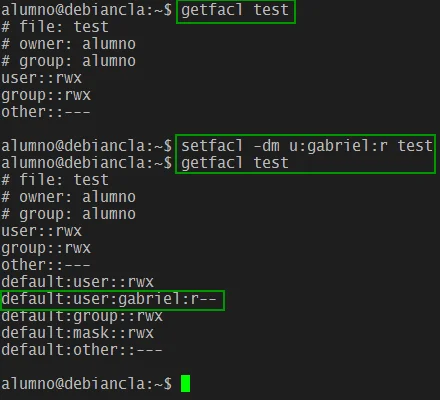
To view the ACLs assigned to a file or directory, use the getfacl command:
getfacl nome_do_arquivoThis command displays the traditional permissions, in addition to the ACLs associated with the file.
2. Configuring ACLs with setfacl
You can add or modify ACLs using the setfacl command. Here are some common examples:
- Grant Read and Write Permissions to a Specific User:
setfacl -m u:usuario:rwx nome_do_arquivoIn this example, u:usuario:rwx grants the specified user read, write, and execute permissions for the file.
- Grant Permissions to a Specific Group:
setfacl -m g:grupo:rx nome_do_arquivoHere, g:grupo:rx grants the specified group read and execute permissions.
- Remove Specific Permissions:
setfacl -x u:usuario nome_do_arquivoThis command removes the specific ACL permissions for a user.
3. Applying ACLs Recursively
To apply ACLs to a directory and all its subdirectories and files:
setfacl -R -m u:usuario:rwX nome_do_diretórioIn this example, -R applies the permissions recursively. The X grants execute permissions only if the file is already executable or if it is a directory.
4. Setting Default ACLs on Directories
You can define default ACLs so that all new files and subdirectories created within a directory inherit these permissions:
setfacl -m d:u:usuario:rwx nome_do_diretórioThe d: prefix indicates that you are setting default ACLs.
How to Remove ACLs
To remove all ACLs from a file or directory and return to default permissions, use the following command:
setfacl -b nome_do_arquivoThis removes all ACL entries, leaving only the traditional permissions.
Why Use ACLs?
ACLs are particularly useful in scenarios where:
- Multiple Users need different levels of access to the same file or directory.
- Collaborative Environments require granular control over who can edit, view, or execute specific files.
- Complex System Administration, where managing group or owner permissions alone becomes inefficient.
Conclusion
Access Control Lists (ACLs) in Linux offer much more granular control over file and directory permissions than traditional permissions. They allow you to fine-tune access, ensuring that each user and group has exactly the permissions they need.
If you are administering a system with many users or need to ensure security and access control in a collaborative environment, mastering the use of ACLs is essential. Try the getfacl and setfacl commands on your system and see how ACLs can make permission management easier.

Prof. Uirá Ribeiro
Chair do Board do Linux Professional Institute
After years of watching professionals waste hours on simple tasks because they didn't know the right Linux tools, I decided to teach.
Today I'm the author of most of LPI's official Learning Materials and mentor to over 14,000 certified students.
That was just one piece. The course teaches the whole path — from your first command to exam day.

