Linux Directory Hierarchy: /etc, /var, /home, /bin and More

The need to store information in objects that could be accessed later in an organized way has been around for a long time in operating systems. For this, file systems were created. Each file system maintains a directory hierarchy that defines its organization and purpose, and in Linux it is no different. Basically in Linux everything is a file, which depending on its type, can become a regular file, a directory, a link, a socket, a pipe, a device descriptor, etc.
In file systems in general, objects are organized in a hierarchical way and each object has a unique identification within a table.
For example, let's look at Microsoft's Windows operating system: it organizes its files in a partition named as drive "C:\", and in it we have the Windows directory, which contains the operating system; the "Program Files" directory, which contains most of the installed products, and so on. Files are divided into different directories and subdirectories for affinity and organization purposes. In the same way we have an organization in Linux.
The identification of the objects of a file system in Linux is known as an inode. It carries information about where the object is located on the disk, security information, date and time of creation and last modification, among others. When we create a file system in Linux, each device has a finite number of inodes which will be directly proportional to the number of files that device can accommodate.
Basically in Linux everything is a file, which depending on its type, can become a regular file, a directory, a link, a socket, a pipe, a device descriptor, etc.
Comparing to Windows, the organization of directories in Linux is a bit more complex. The file system in Linux is similar to an upside-down tree. At the top of the Linux hierarchy there is a root directory simply named root and identified as the "/" sign. Do not confuse root directory (root) with the root superuser.
The structure of the Linux file system is defined by a market standard called Filesystem Hierarchy Standard or FHS, created by the Linux community in 1994 and maintained by the Linux Foundation. Currently FHS is at version 3.0. Distributions are not required to follow this standard, but they understand the importance of standardized file and directory locations.
The entire directory structure of the system is created below root:
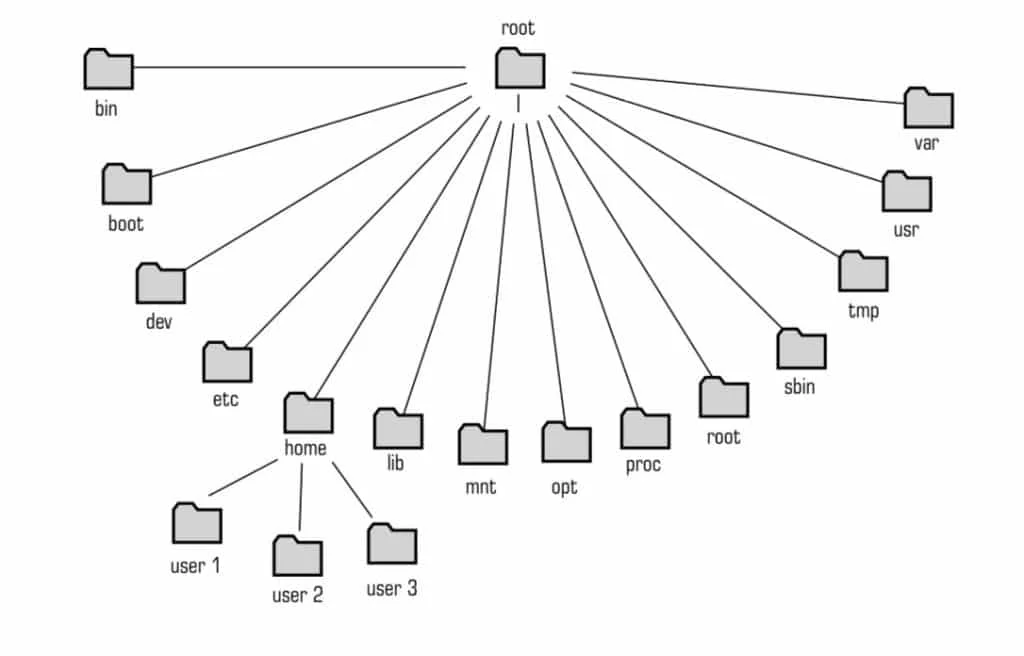
/
Root directory of the file system;
/bin
Contains commands that can be used by users and the system administrator. They are required in single-user mode or maintenance mode and may also contain commands that are used indirectly by some scripts. In it are the executable files, such as: cat, chgrp, chmod, chown, cp, date, dd, df, dmesg, echo, hostname, kill, ln, more, mount, mv, ps, pwd, rm, rmdir, sed, su, umount and uname;
/boot
Static files required for system boot. It is where the Kernel image, initramfs and some Grub files are located. This directory contains everything needed to load the system, except configuration files and the boot manager. The /boot includes the master boot sectors and sector map files.
/dev
Kernel abstraction where device access files are located, such as disks, cd-roms, flash drives, serial ports, terminals, etc. The files are descriptors that facilitate device access. This directory is a pseudo-filesystem, and does not exist on disk. Its contents, for example, have device descriptors such as /dev/sda, /dev/cdrom, etc.
/etc
Files required for system configuration. They are needed for operating system boot. It has important files such as: fstab, exports, passwd, shadow, group, hosts, hosts.allow, hosts.deny, inittab, ld.so.conf, mtab, profile, services, etc. Network interface configuration files also reside in it.
Typically /etc has two subdirectories:
/etc/X11: Configuration files for the Linux graphical interface (X Window System);
/etc/skel: User configuration skeletons. The template files for users are located in the /etc/skel directory. The contents of this directory is replicated to the home directory of new users when they are created in the system.
/home
Generally it is in this directory where users' home directories are located. In these directories are profile and bash shell startup scripts for each user.
/lib
Essential library files for the system, used by programs in /bin and Kernel modules. It is common to have a /lib[architecture] directory. On 64-bit processors, there is a /lib64 directory. On 32-bit processors, there should be a /lib32 directory.
/mnt
Empty directory used as a mount point for devices on the machine. Used by the administrator to mount disks.
/media
Empty directory used as a mount point for devices on the machine, such as cdrom, dvd, pen drives, etc.
/proc
Kernel and process information. It is a pseudo-filesystem and does not actually exist on disk. This directory contains abstractions of descriptors for everything in the system Kernel. It is possible not only to read the data, but also to make changes to the Kernel behavior by modifying the contents of files in /proc. Making an abstraction from Windows, this directory would be the system "registry".
/opt
This directory contains installed applications that are not part of the Linux distribution, such as third-party databases, CAD vector software, etc.
/root
Home directory of the root superuser. Depending on the distribution, it may or may not be present;
/run
This directory contains system information since the last boot. Files in this directory are deleted or cleared at the beginning of the boot process. Files such as those indicating the PID of the running process should reside in this directory.
/sbin
Essential system files, such as applications and utilities for machine administration. Usually only the superuser has access to these files, such as: fdisk, fsck, ifconfig, init, mkfs, mkswap, route, reboot, swapon and swapoff.
/tmp
Temporary files directory. In some distributions this directory is mounted in memory. It is recommended that its contents be deleted from time to time or at each reboot.
/usr
Files belonging to users and the second largest directory hierarchy in Linux. Its contents can be distributed over the network to various Linux systems of the same distribution without any problem. It has some subdirectories, namely:
/usr/bin: User auxiliary tools and commands, as well as programming interpreters, such as perl, python, etc;
/usr/include: C language headers and libraries;
/usr/lib and /usr/lib64: user application libraries;
/usr/libexec: binaries that are not normally executed by users;
/usr/local: directory hierarchy for installing local applications on the system. It has several subdirectories such as bin, etc, include, lib, man, sbin, share and src;
/usr/sbin: contains non-essential but system administration-exclusive tools.
/usr/share: architecture-independent read-only files. These are files that can be shared between identical Linux distributions regardless of architecture. The man directory, for example, is where the command manuals reside and is located in /usr/share.
/usr/src: may contain source code files of programs.
/var
Directory where variable information about the system is stored, such as log files, email files, etc. It has important subdirectories, namely:
/var/cache: maintains cache information of applications such as calculations, etc;
/var/lib: maintains application state information;
/var/lock: maintains lock files that retain devices for exclusive use of a certain application;
/var/log: maintains system log files, such as messages, lastlog and wtmp.
/var/mail: maintains user email account directories;
/var/opt: maintains variable files of applications;
/var/run: the functionality of this directory has been moved to /run.
/var/spool: maintains data of processes that maintain file queues, such as printing and email output;
/var/tmp: maintains temporary files of applications that need to be preserved between system reboots
Hidden Files and Directories
To hide files and directories in Linux, simply rename them by starting their name with a dot ".".
For example, when listing the contents of a folder, the "musics" directory is present:
$ lsarquivo musicasIf we rename the directory musicas, starting with a ".", it will no longer appear in the file and directory listing:
$ mv musicas .musicasThe "mv" command is used to move, or rename files and directories.
When listing the folder, the "musicas" directory will not appear:
$ lsarquivoHidden files and directories will only appear in the listing with the "-a" option of the ls command:
$ ls -a. .. arquivo .musicasCurrent Directory and Parent Directory
Every directory in Linux has two special, hidden files.
The first file is the dot "."
It serves to reference the current directory.
The second file is the dot-dot ".."
It serves to reference the parent directory.
Thus, these two special files serve to make relative references to the system's files and directories. It is called relative because the reference depends on the starting point, the current directory.
In contrast, an absolute reference, or full path, is the reference of a file or directory, taking the root directory "/" as the base.
To know the current directory, you should use the "pwd" command.
Observe the current directory:
$ pwd/home/carlacruzIf we want to list the contents of a directory, you can use the "ls" command:
$ lsbin public_htmlTo list the contents of a file inside the public_html directory, you can use the relative path, from the current directory, using the "." file:
$ cat ./public_html/arquivoThis is a sample text file
Or use the absolute path:
$ cat /home/carlacruz/public_html/arquivoThis is a sample text file
If we want to list the contents of the /home directory, you can likewise use the special file ".." which refers to the parent directory:
$ ls ../carlacruz uiraribeiro arthur The special file ".." can also be used to navigate directories, with the "cd" command:
$ cd ..$ pwd/home$ cd ..$ pwd/Note that between the "cd" command and the special file ".." a space is required, to separate the "cd" command from the special file "..".
Home Directory
Each user on Linux has a unique special directory, called the HOME directory.
It is in their HOME directory that each user can create, delete, move, and rename files and folders at will.
No other regular user of the system can have access to another user's home directory. Only the root superuser can have access to any directory in the system.
It is in the home directory that special configuration files for user profiles and the desktop environment also reside, as well as their private access keys to other hosts and encryption keys.
The Linux file hierarchy standard determines that user HOME directories be created inside the /home directory.
It is in the user accounts file /etc/passwd that the path to users' home directories is defined:
$ cat /etc/passwd | grep carlacarla:1000:1000:Carla Cruz:/home/carlacruz:/bin/bashThe $HOME variable holds the path to the home directory of the user logged into the system:
$ echo $HOME/home/carlacruzLinux provides a shortcut to the home directory of the logged-in user through the tilde symbol "~":
$ cd ~$ pwd/home/carlacruzThis way, you can use the path of "~" to reference the files and directories of the logged-in user's HOME directory:
$ cat ~/public_html/arquivo
Este é um arquivo texto de exemplo.
Conclusion
Knowing the directory hierarchy in Linux is essential for Linux/Unix administrators. Explore each of its directories, commands, and files.
Learn much more about Linux in our online course. You can enroll here. If you already have an account, or want to create one, simply log in or create your user here.
Liked it? Share

Prof. Uirá Ribeiro
Chair do Board do Linux Professional Institute
After years of watching professionals waste hours on simple tasks because they didn't know the right Linux tools, I decided to teach.
Today I'm the author of most of LPI's official Learning Materials and mentor to over 14,000 certified students.
That was just one piece. The course teaches the whole path — from your first command to exam day.

