Debian Package Management: apt, dpkg, and aptitude on Ubuntu and Debian

Use tools to install, update, uninstall packages, obtain information such as version, content, dependencies, integrity, and installation status.
Debian package management on Linux is an excellent way to distribute, install, and uninstall software for Debian and Ubuntu distros.
A package in a few words is a file that contains the information necessary for the package manager to install, maintain, and remove programs as well as other necessary files of a given application.
An important characteristic of Linux is the modularization of its components and the intensive use of shared libraries. This also applies to application packages.
It is quite common for a programmer to use shared libraries and not include them in their application.
It is common when trying to install a certain package that it is first necessary to install another package that contains the prerequisites or libraries for its installation. Each package carries the necessary dependency information.
Large software projects use distributing the various modules of their application in several packages that may or may not be installed according to their use.
The organization of an application into several packages allows the administrator to install only those that are really necessary, avoiding having to install components that will not be used. Following the line of package managers, two major Linux distributions stood out.
Debian united the GNU tools, the Linux Kernel and other important free software forming the distribution called Debian GNU/Linux. This distribution is made of a large number of software packages.
Each package in the distribution contains executable programs, scripts, documentation and configuration information. Debian's package manager is versatile and robust. Ubuntu and SteamOS follow the Debian standard.
Also the American company Red Hat was one of the pioneers in the serious treatment of Linux. Since the beginning it has been one of the main distributions worldwide with great influence.
Creator of RPM, the most widely used package manager currently on Linux, Red Hat has a distribution focused on the server market. Fedora, Mandriva, SuSE, OpenSuSe, CentOS and Oracle Linux follow the RPM standard.
Debian is attentive to details that allow us to produce high quality and stability programs.
Installations can be easily configured to serve multiple purposes, such as Linux firewalls with few packages, scientific desktop stations and high-performance network servers.
This distribution is especially popular among advanced users because of its technical excellence and attention to the needs and expectations of the Linux community.
Debian also introduced many characteristics to the system that are now routine such as the package management system for easy software installation and removal and also the possibility of allowing system upgrade without requiring reinstallation.
The package manager tools allow the administrator of a Debian system complete control of installed software, including the ability to install a single package or automatically update the entire operating system.
Packages can also be protected from being updated.
Debian package names follow the following pattern:
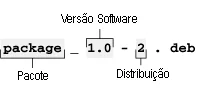
- Package Name: The package name is a brief description of its contents. If more than one word is used, they are separated by a dash;
- Software version: Each package has its own version number, which can vary between major version and applied fixes;
- Package revision: Packages can also have different distribution revisions. The package revision can also indicate for which platform it was prepared;
- .deb extension: For easy identification of Debian packages.
Examples:
abiword-gtk_1.0.2+cvs.2002.06.05-1_i386.deb
abiword-plugins_1.0.2+cvs.2002.06.05-1_i386.deb
Tools to manipulate packages
dpkg
The dpkg command is the utility responsible for package management on Debian systems.
It keeps the information of installed packages basically in the files /var/lib/dpkg/available and /var/lib/dpkg/status. These files contain the list of available packages and status, respectively.
The most frequent options are:
- -E: This option does not overwrite a package already installed with the same version;
- -G: This option does not overwrite a package already installed, even if it is older;
- -R: Processes all packages found in a given directory recursively.
The most frequent actions are:
- -i packagename: Installs the packagename package. This process involves making backup copies of old files that already exist in the system, unpacking, installation and configuration. This action can also be referenced with –install packagename;
- -l searchkey: Lists information of packages that contain the same search key in the name;
- -L packagename: Lists the files installed by the packagename package;
- — print-avail packagename: Lists all available information about the packagename package in /var/lib/dpkg/avaliable;
- — purge packagename: Removes the entire packagename package;
- -r packagename: Removes all files of the package, except the configurations;
- -s packagename: Shows the status of the package;
- -S file: Searches for a file in installed packages;
- —unpack packagename: Unpacks a package, but does not install;
- —configure packagename: Configures an unpackaged package.
Examples:
Install a package using dpkg
# dpkg -i acct_6.3.5-32_i386.deb
Remove a package using dpkg
# dpkg —purge ace-of-penguins_1.2-3_i386.deb
dpkg can also be used to find out which package a given file belongs to:
# dpkg -S stdio.h
libc6-dev: /usr/include/stdio.h
libc6-dev: /usr/include/bits/stdio.h
perl: /usr/lib/perl/5.6.0/CORE/nostdio.h
Another possibility is to find the packages installed on the system using a keyword:
# dpkg -l | grep mozilla
ii mozilla-browse 0.9.6-7 Mozilla Web Browser
The file /etc/dpkg/dpkg.cfg contains the default options when dpkg is run.
dpkg control files reside in the /var/lib/dpkg directory. Two interesting files in this directory are:
/var/lib/dpkg/available: List of available packages;
/var/lib/dpkg/status: State of installed packages. It reports when they were installed, removed, etc.
dpkg-reconfigure utility
Usage:
# dpkg-reconfigure [package name]
The dpkg-reconfigure command reconfigures a package already installed on the system. It has the same effect as re-installing the package.
Example:
# dpkg-reconfigure debconf
apt-get utility - the real Swiss Army knife
The apt-get command (Advanced Package Tool) is an advanced package manager.
It can use local or remote files to perform package installation or upgrade.
This way it is possible to upgrade the entire Debian system via ftp or http. This manager also maintains information about packages and their dependencies.
Due to its ease of operation, apt-get is the preferred method for managing packages. This utility offers dozens of options configured in the /etc/apt/apt.conf file.
The /etc/apt/sources.list file contains the locations where apt-get will find packages, the distribution to check (stable, testing, unstable, Woody, Sarge) and the section to be copied (main, non-free, contrib, non-US).
Below is a simple example of an /etc/apt/sources.list file with explanation of the sections:
deb http://www.debian.org/debian stable main contrib non-free
deb http://nonus.debian.org/debian-non-US stable non-US
In the /etc/apt/apt.conf file we can specify options that will modify apt-get's behavior during package handling.
apt-get uses a package list to check whether existing packages on the system need to be upgraded or not. The newest package list is copied through the apt-get update command.
apt-get is very useful because the administrator doesn't need to manually download from the Internet the package they want to install, let alone deal with dependencies, as long as what they need is in the repositories indicated in sources.list.
The most frequent options for this utility are:
- -d: Downloads files but does not install. It is useful for downloading large amounts of packages for later installation;
- -s: Simulates package installation but does not make any modifications;
- -y: Answers yes to all questions asked during the installation/uninstallation process of packages.
The most frequent commands are:
- dist-update: This command performs automatic Debian system upgrade;
- install: This command installs a specific package by name;
- remove: This command removes a specific package by name;
- update: This command lists all available packages. The process is done automatically before any modification to packages;
- upgrade: This command is used to perform a safe system upgrade, as it does not install packages that could cause conflicts or failures in configuration files.
Examples:
# apt-get install airsnort
Installs the airsnort.x.y.deb package. This command can install more than one package by separating names with spaces. You only need to specify the package name, without version (X), revision (Y) and suffix (.deb).
If necessary, apt-get will automatically install the dependencies required for a package to work correctly.
apt-get can upgrade your entire distribution in an intelligent and safe way. It reads the list of available packages on the remote server, checks which are installed and their versions, and upgrades outdated packages.
# apt-get upgrade
File copying can be done via ftp, http, local copy from hard disk or CD-ROM.
Want "graphical" mode? Use aptitude to install and remove software
The aptitude utility is an interface to facilitate the use of APT. It shows a list of packages and allows the user to select packages for installation or removal interactively.
It also acts as a powerful package search system and package details.
Originally developed for Debian it is also present in other distributions, as well as in some that use the RPM standard.
It uses the ncurses library for terminal emulation and interactive menus, emulating apt-get usage in a simpler and more intuitive way.
Hold on! There's more! See the apt-cache command
The apt-cache utility is for manipulating and obtaining information about packages in the apt cache.
It must be used together with some commands, as follows:
# apt-cache add: Adds a package to the apt cache;
# apt-cache gencaches: Generates the apt cache;
# apt-cache showpkg: Shows some information about a specific package;
# apt-cache stats: Shows some statistics;
# apt-cache check: Checks the cache sanity;
# apt-cache search: Searches the package list for a specific occurrence;
# apt-cache show: Shows details about a specific package;
# apt-cache depends: Shows the software dependencies of a specific package;
# apt-cache pkgnames: Lists the names of all packages.
apt-cache can be used to find packages that contain Atari emulators:
# apt-cache search atari
atari800 - Atari emulator for svgalib/X/curses
stella - Atari 2600 Emulator for X windows
xmess-x - X binaries for Multi-Emulator Super System
It can also be used to learn more about a specific package, such as the Stella emulator:
# apt-cache show stella
Package: stella
Priority: extra
Section: non-free/otherosfs
Installed-Size: 830
Maintainer: Tom Lear <[email protected]>
Architecture: i386
Version: 1.1-2
Depends: libc6 (>= 2.1), libstdc++2.10, xlib6g (>= 3.3.5-1)
Filename: dists/potato/non-free/binary-i386/otherosfs/stella_1.1-2.deb
Size: 483430
Or if you simply want to know the dependencies of a package:
# apt-cache depends penguin-command
penguin-command
Depends: libc6
Depends: libpng2
Depends: libsdl-mixer1.1
Depends: libsdl1.1
Depends: zlib1g
Learn much more about Linux in our online course. You can enroll here. If you already have an account, or want to create one, just log in or create your user here.
Did you like it? Share

Prof. Uirá Ribeiro
Chair do Board do Linux Professional Institute
After years of watching professionals waste hours on simple tasks because they didn't know the right Linux tools, I decided to teach.
Today I'm the author of most of LPI's official Learning Materials and mentor to over 14,000 certified students.
That was just one piece. The course teaches the whole path — from your first command to exam day.

