Expand LVM Disk on Virtual Machine: ext4, XFS, Btrfs Examples
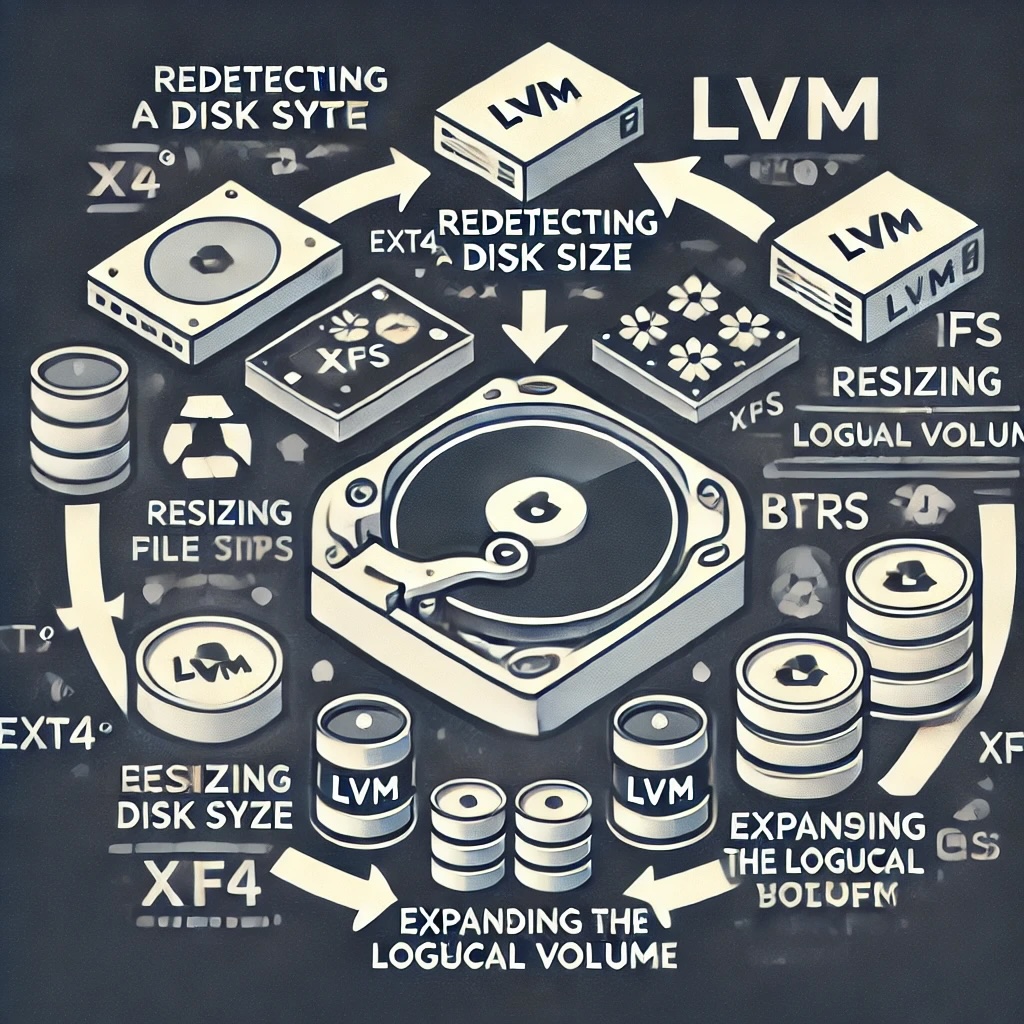

When you increase the disk of a virtual machine, you need to ensure that the operating system and its file systems recognize and use the new available space. In this article, we will explore how to expand disks in LVM (Logical Volume Manager) for ext4, XFS, and Btrfs file systems.
General Steps to Expand the Disk in LVM
The steps to expand a disk in LVM are generally the same, regardless of the file system you are using. Let's start with the general steps and then we'll see the particularities of each file system.
- Re-detect the disk size
- Resize the Physical Volume (PV)
- Expand the Logical Volume (LV)
- Resize the file system
1. Re-detect the Disk Size
First, make the operating system detect the new disk size. We'll use parted as an example:
sudo parted /dev/sdXInside parted, run:
(parted) print
(parted) resizepart N END
(parted) quit
Replace N with the partition number and END with the new size (for example, 100GB).
2. Resize the Physical Volume (PV)
sudo pvresize /dev/sdXReplace /dev/sdX with the correct device (for example, /dev/sda1).
3. Expand the Logical Volume (LV)
sudo lvextend -l +100%FREE /dev/mapper/vgname-lvnameReplace /dev/mapper/vgname-lvname with the path to your logical volume.
4. Resize the ext4 File System
sudo resize2fs /dev/mapper/vgname-lvnameIf Your File System is XFS
sudo xfs_growfs /mount/pointReplace /mount/point with the actual mount point where the XFS file system is mounted.
If Your File System is Btrfs
sudo btrfs filesystem resize max /mount/pointConclusion
Expanding the disk of a virtual machine in LVM is a relatively simple process, but it requires some specific steps depending on the file system you are using. Make sure to carefully follow the appropriate commands for ext4, XFS, and Btrfs, as demonstrated in this article.
If you have any questions or encounter problems, feel free to leave a comment below. Good luck with expanding your disk!

Prof. Uirá Ribeiro
Chair do Board do Linux Professional Institute
After years of watching professionals waste hours on simple tasks because they didn't know the right Linux tools, I decided to teach.
Today I'm the author of most of LPI's official Learning Materials and mentor to over 14,000 certified students.
That was just one piece. The course teaches the whole path — from your first command to exam day.

